Auto Editor app icon

Auto Editor 2.5

One video in. Everything out. In minutes.

Drop in one recording. Your full video comes back edited, with the clips and the thumbnails, in minutes. On your own PC.

Get access
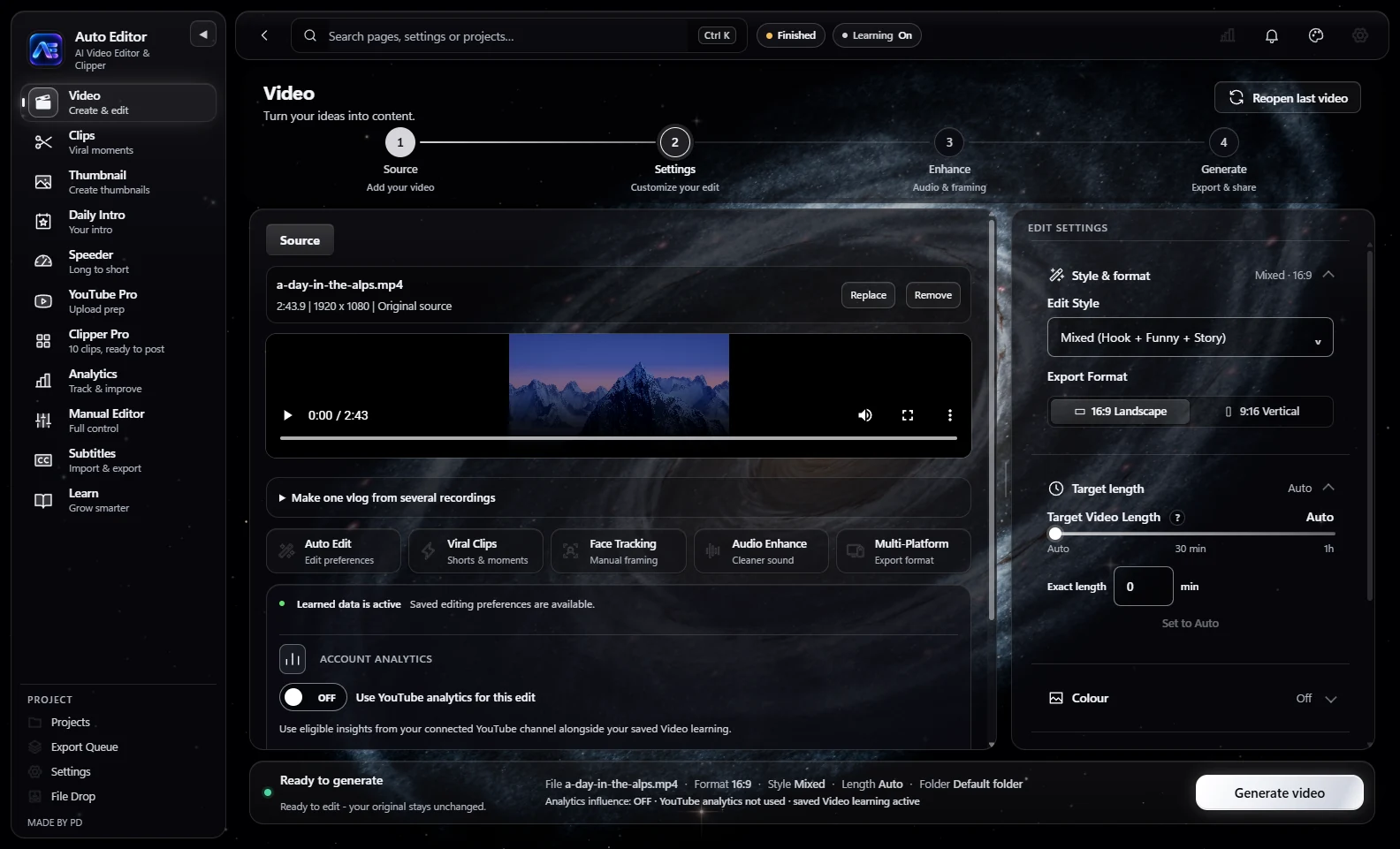
The Auto Editor Video page with the demo video a-day-in-the-alps.mp4 loaded and ready to generate. The sidebar lists Video, Clips, Thumbnail, Daily Intro, Speeder, YouTube Pro, Clipper Pro, Analytics, Manual Editor, Subtitles and Learn; the page runs through four steps: Source, Settings, Enhance and Generate.

What comes out

Speeder

One drop. The whole package.

Give Speeder one video and a title. It hands back five thumbnails, your complete edit with a Daily Intro on the front, and up to ten clips cut from the final video.

  1. One source

    a-day-in-the-alps.mp4
  2. 5

    thumbnails

  3. 1

    finished edit + Daily Intro

  4. 10

    clips from the final video

About a minute and a half. That is how long this whole run took, from pressing Generate to the last clip.

Every picture here is a real file Speeder made from one 2 min 44 s demo video, timed on our test PC. Your time depends on your PC and the length of your video. It found three distinct clips in it: ten is the target, never a reason to repeat footage.

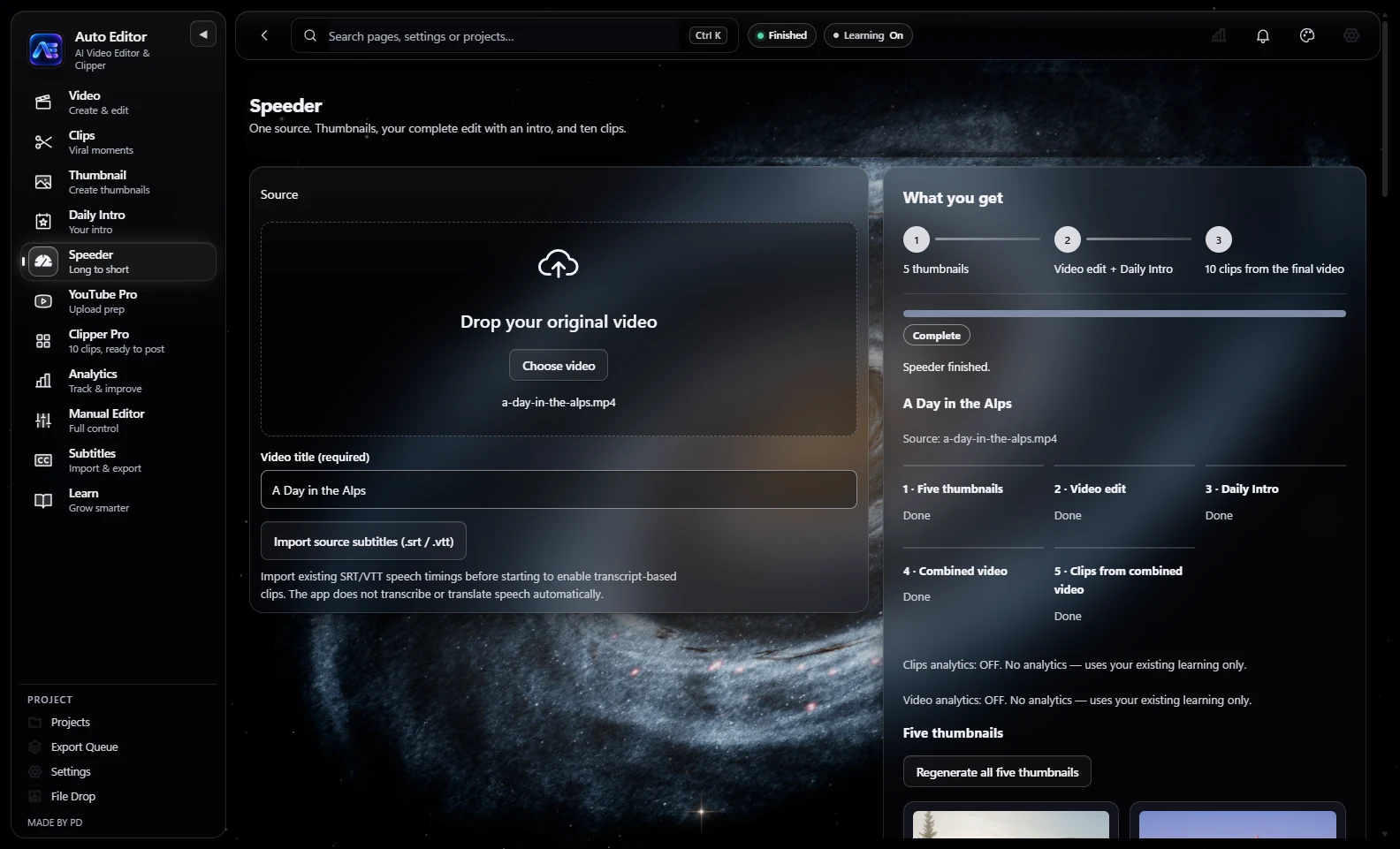
The Speeder page after a real run on the demo video: the source a-day-in-the-alps.mp4 with the title A Day in the Alps, and a What you get panel that reads Complete, Speeder finished, with five stages marked Done: Five thumbnails, Video edit, Daily Intro, Combined video, and Clips from combined video.
One source, one title, five stages. All done.

Features

Video

Your full video, edited for you.

Drop in a recording, pick 16:9 or 9:16 and press Generate. Auto Editor edits the video for you. Several recordings? It can build one vlog from all of them.

  • MP4, MOV, MKV, AVI, WebM
  • Auto edits the video
  • Choose a length up to one hour, or leave it on Auto
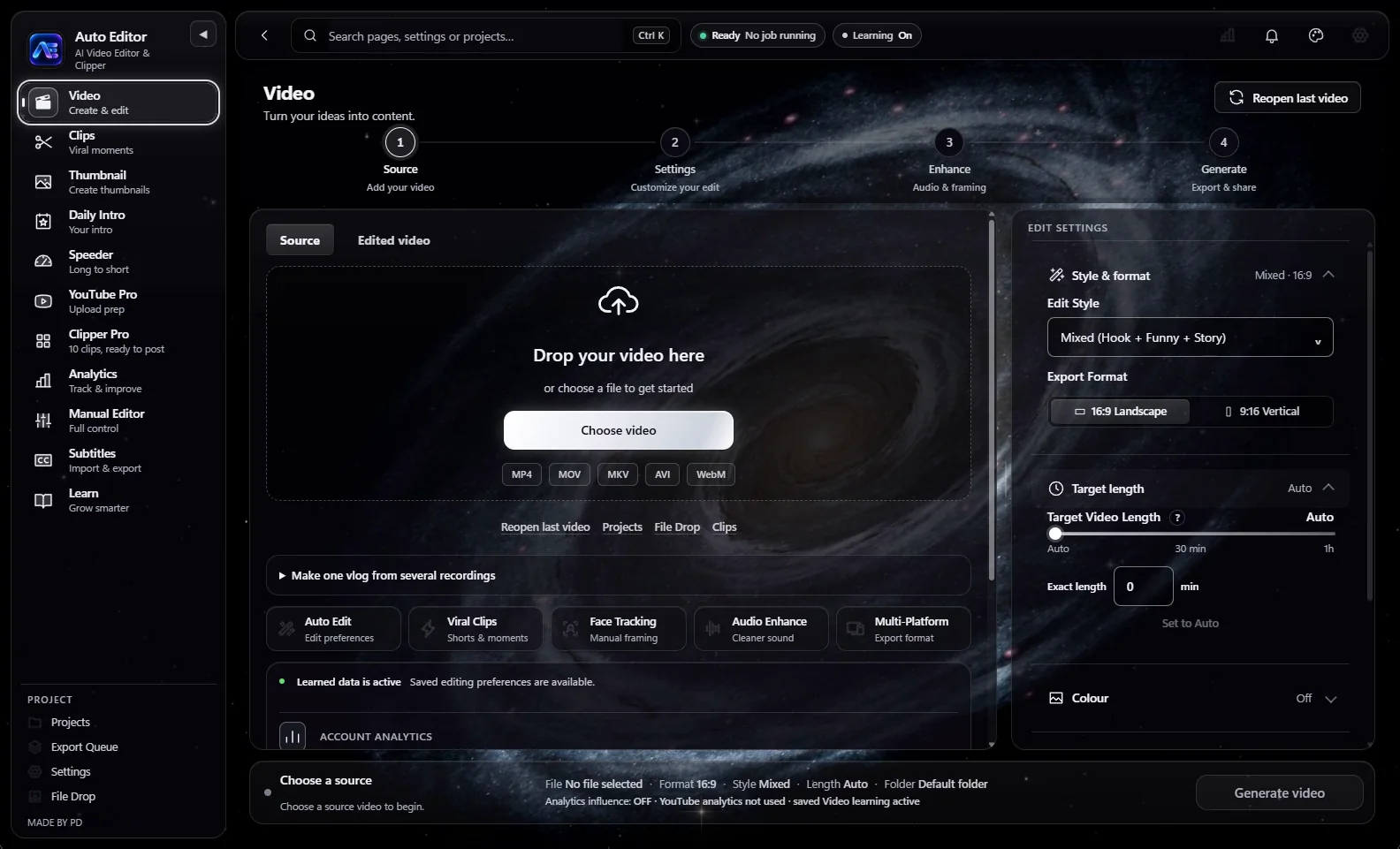
The Video page in the Spiral Galaxy Black theme, with the four steps Source, Settings, Enhance and Generate, the Drop your video here area and the Edit settings panel.

Clips

One video. Up to twenty clips.

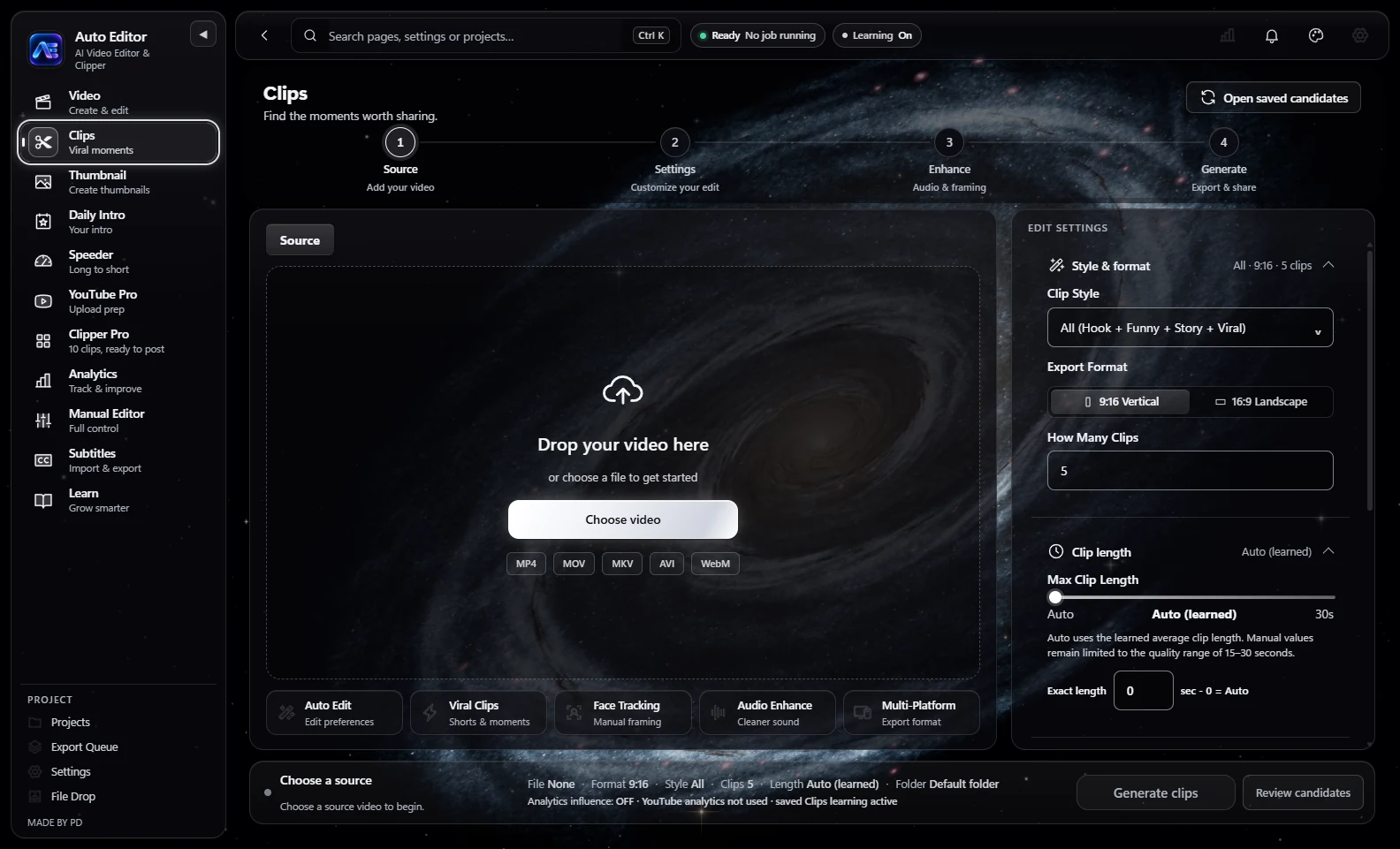
Clips cuts one video into anywhere from one to twenty clips, in the style you choose: Hook, Funny, Story, or all of them. Want every clip packaged? Clipper Pro makes up to ten ready-to-post clips, lets you pick each one's thumbnail, title and caption, and exports every clip into its own folder.

  • Vertical 9:16 or landscape 16:9
  • Set up for YouTube or TikTok
  • Source, Settings, Enhance, Generate
  • Works with your channel's analytics
The Clips page of Auto Editor, where clips are found in one video and set up for posting.
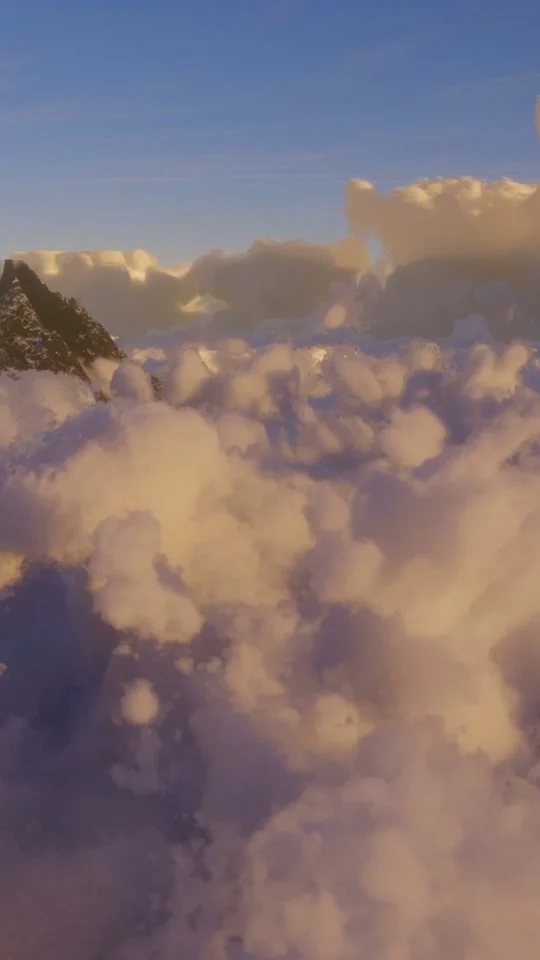
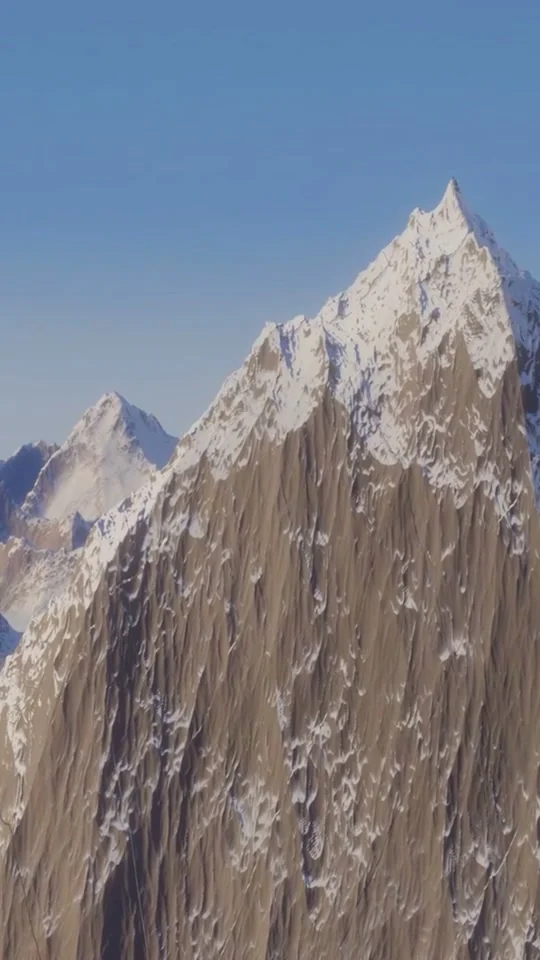
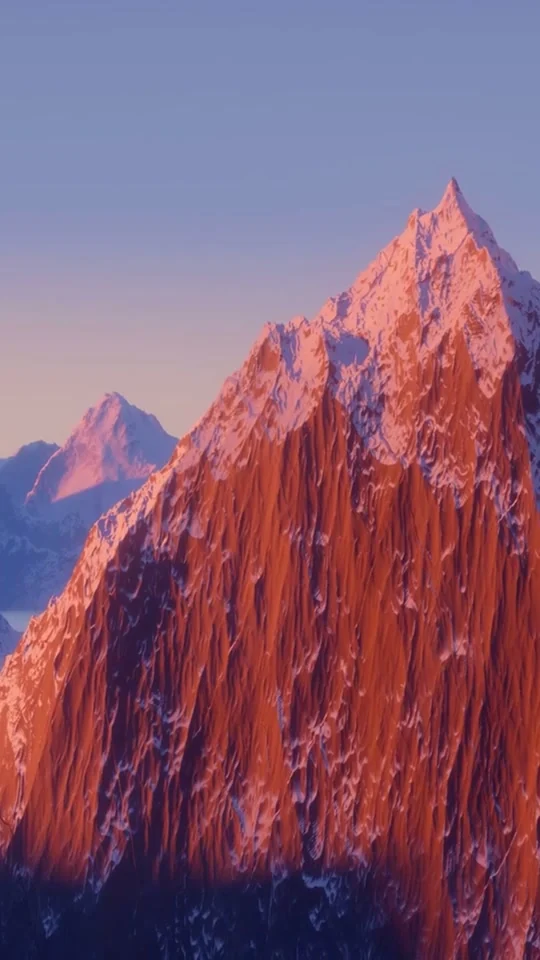
A vertical clip cut from the demo video. A second vertical clip cut from the demo video. A third vertical clip cut from the demo video.

Vertical clips the app cut from the demo video, made here with Speeder.

Thumbnail

Find the frame. Build the thumbnail.

Auto Editor scans your video and suggests its strongest frames, or you pick one yourself. Add your title, choose a look, and generate up to eight variations to choose from.

  • 1280 x 720
  • Packaging Score
  • Thumbnail Coach
  • Brand Kit
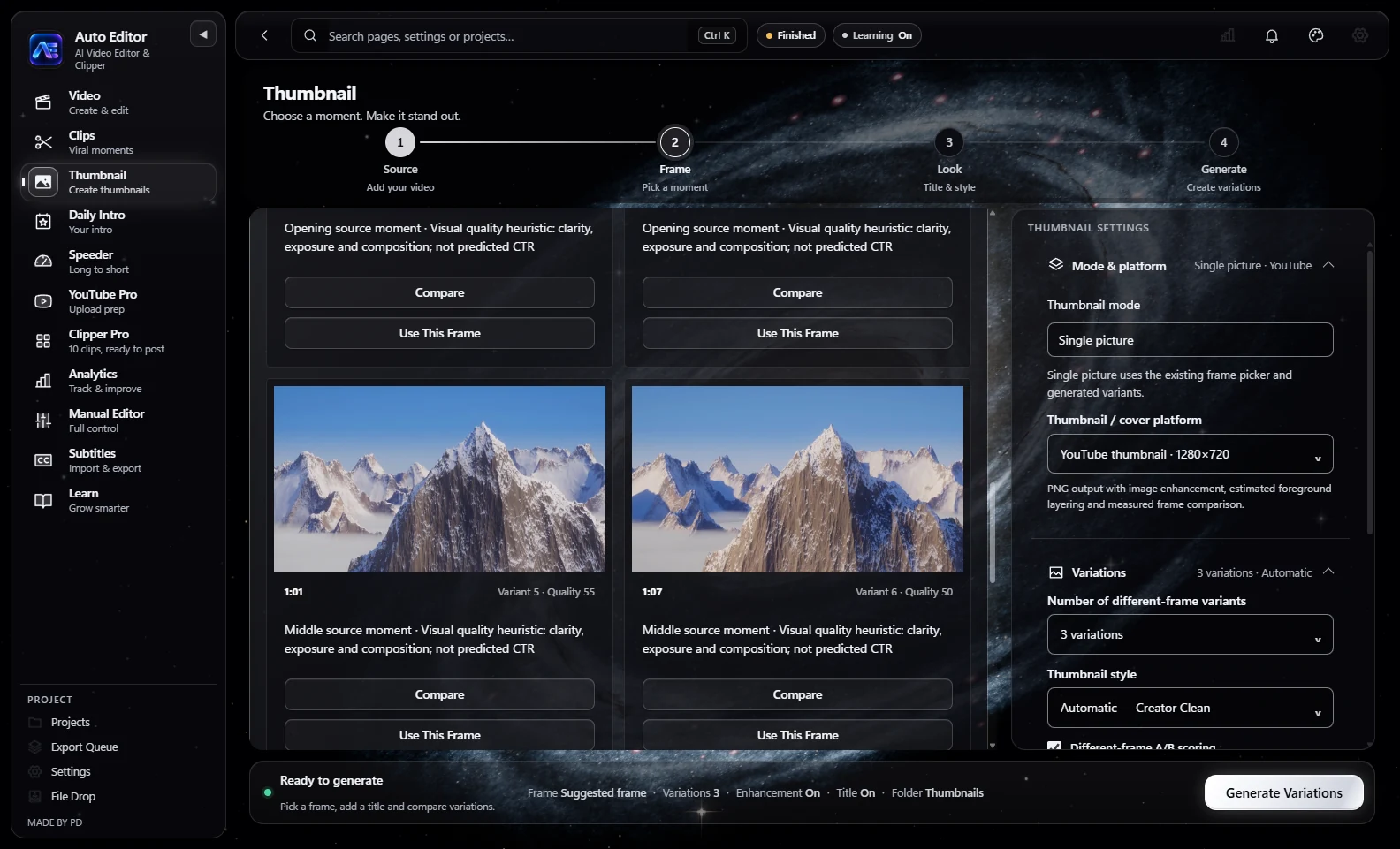
The Thumbnail page with the demo video: four steps, Source, Frame, Look and Generate; suggested frames, each with a quality note and Compare and Use This Frame buttons; and settings for a YouTube thumbnail at 1280 by 720 with three variations in the Creator Clean style.
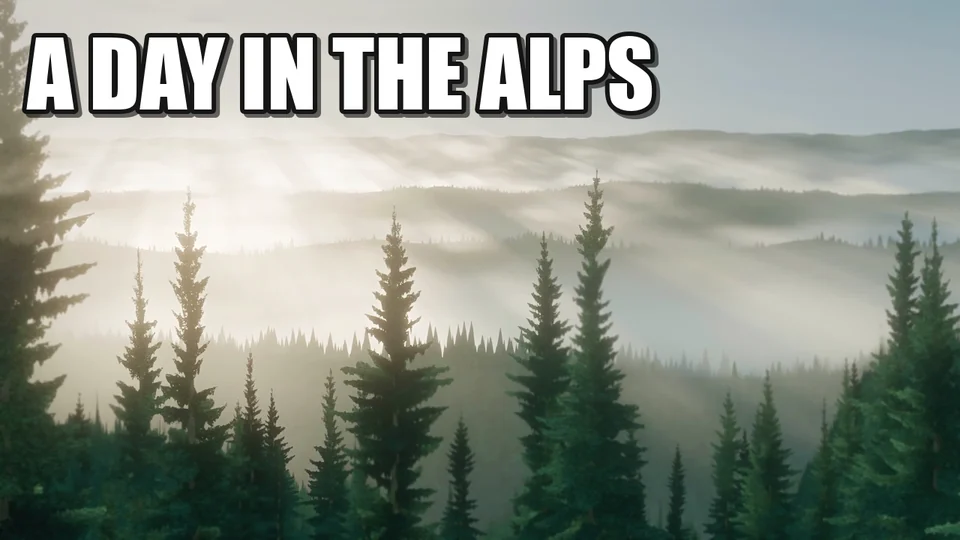
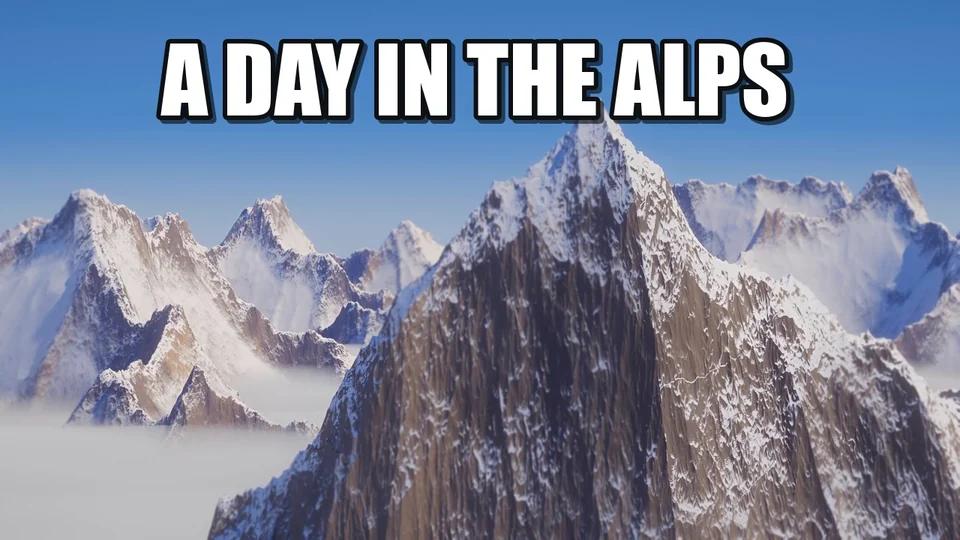
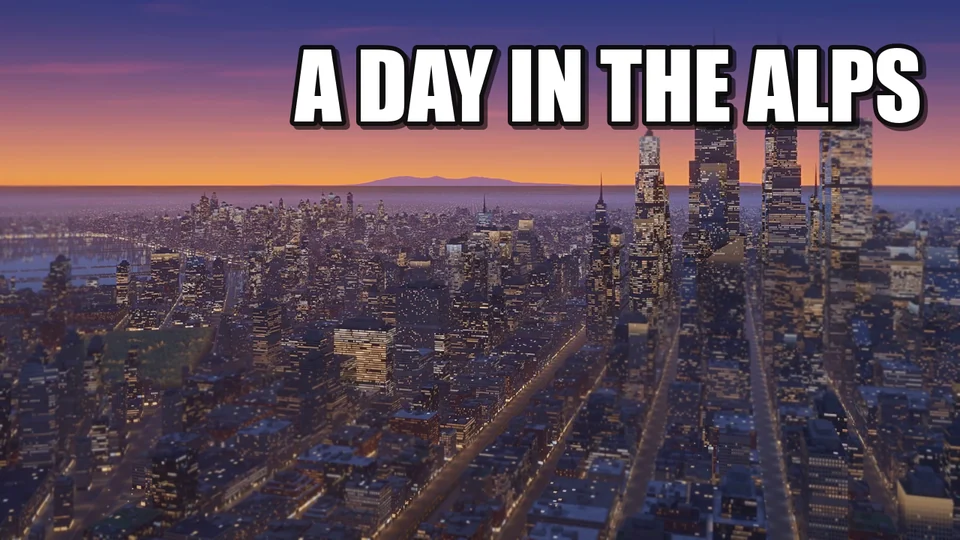
Thumbnail variation 1 of 3 made from the demo video, with the title A Day in the Alps. Thumbnail variation 2 of 3 made from the demo video. Thumbnail variation 3 of 3 made from the demo video.

Three variations the app made for the demo video. Each one gets a Packaging Score and the reasons behind it.

Looks: Creator Clean, Creator Pop, Bright Natural, Bold YouTube, Cinematic, Vibrant.

YouTube Pro

Upload day, handled.

One video, ready for YouTube: the edit, then the title, description, tags, thumbnail and subtitles. Eight steps, one screen. Nothing is uploaded from here, so the publish button stays yours.

  • Eight steps, one screen
  • Title, description, tags
  • The publish button stays yours
  • Works with your channel's analytics

Manual Editor

Full control, whenever you want it.

A real timeline for the days you want to do it by hand. Split, duplicate and group clips. Add transitions. Change speed, hold a frame or run a clip in reverse. Blur an object or a person. Then export at up to 4K and 120 FPS.

  • Source, 720p, 1080p, 1440p, 4K
  • 24 to 120 FPS
  • Split, duplicate, group
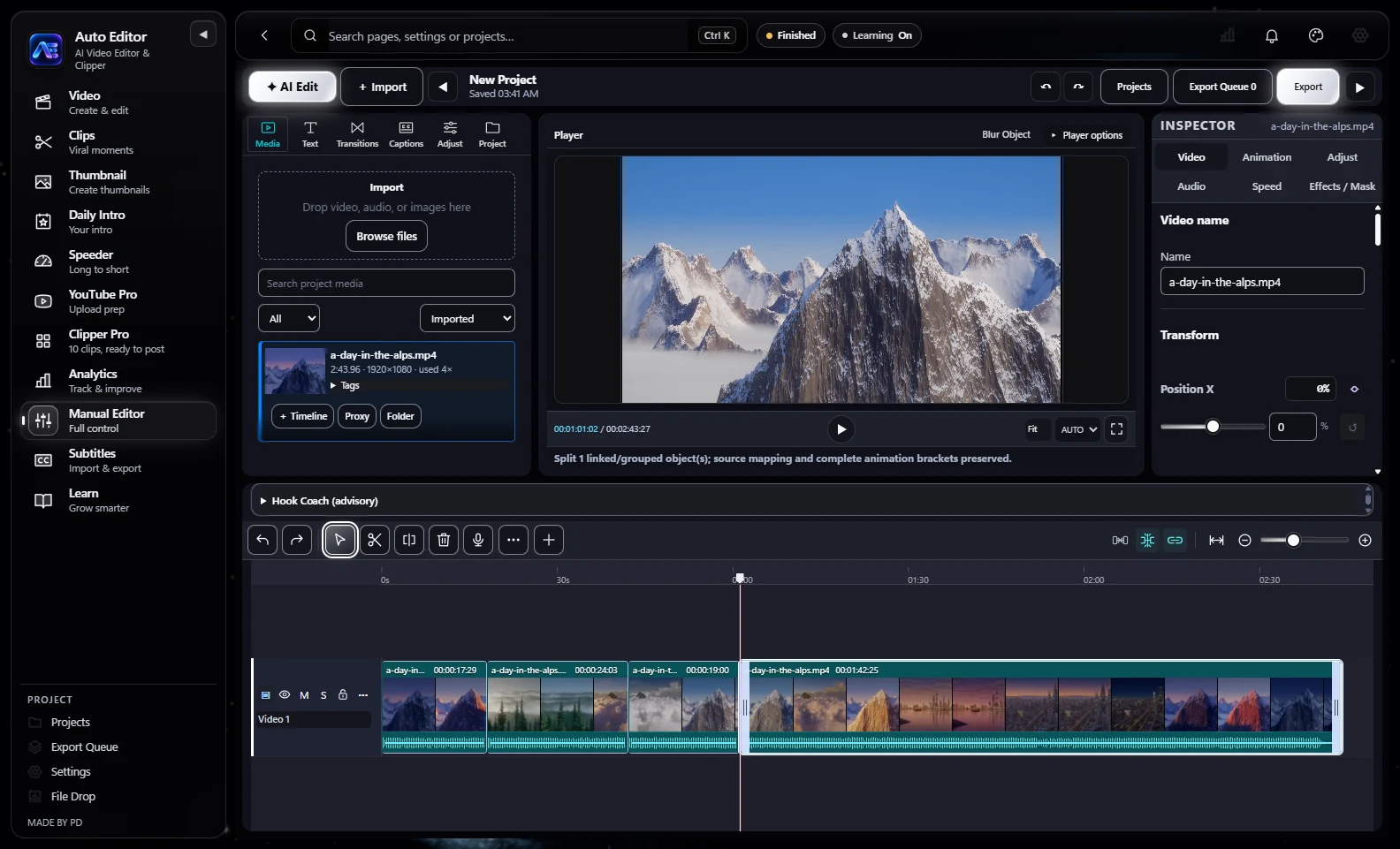
The Manual Editor with the demo video: a media library, a player, an Inspector with Video, Animation, Adjust, Audio, Speed and Effects / Mask tabs, and a timeline where the clip is split into four pieces, each with a filmstrip and a waveform.
Export 4K120 FPS
SSplit VCSelect, razor NSnap JKLShuttle SpacePlay CtrlZUndo
Cross dissolveDip to blackWipe leftSlide left

Analytics

Every upload teaches the next one.

Connect your YouTube channel and Analytics shows it at a glance: views, watch time, thumbnail clicks, what is growing and when to post. It follows TikTok too, kept separate from YouTube.

Then it goes to work. Switch on “Use YouTube analytics for this edit”, and YouTube Pro and Clipper Pro take what your channel has shown into your next video and your next clips. Your YouTube videos and your TikToks each get what works on their own platform. Built so your videos keep improving, and reach further.

  • YouTube and TikTok, tracked separately
  • A switch for each edit: you decide
  • Self-improving by design

Learn

It learns what works for you.

Self-learning is built in.

Your learning data is stored on your PC.

Appearance

Make it yours.

Thirteen themes, each with its own wallpaper, glass and glow. Every wallpaper moves. Five of them also live through a full day, from sunrise to night, while you work. Pick an accent colour, or dial in your own glow.

The Video page in the Spiral Galaxy Black theme.
Theme

Spiral Galaxy Black

Recorded in the app at real speed: every wallpaper moves. Living themes also go through a full day.

Accent colours include White, Purple, Pink, Blue, Emerald, Gold and Sunset, plus a custom glow colour.

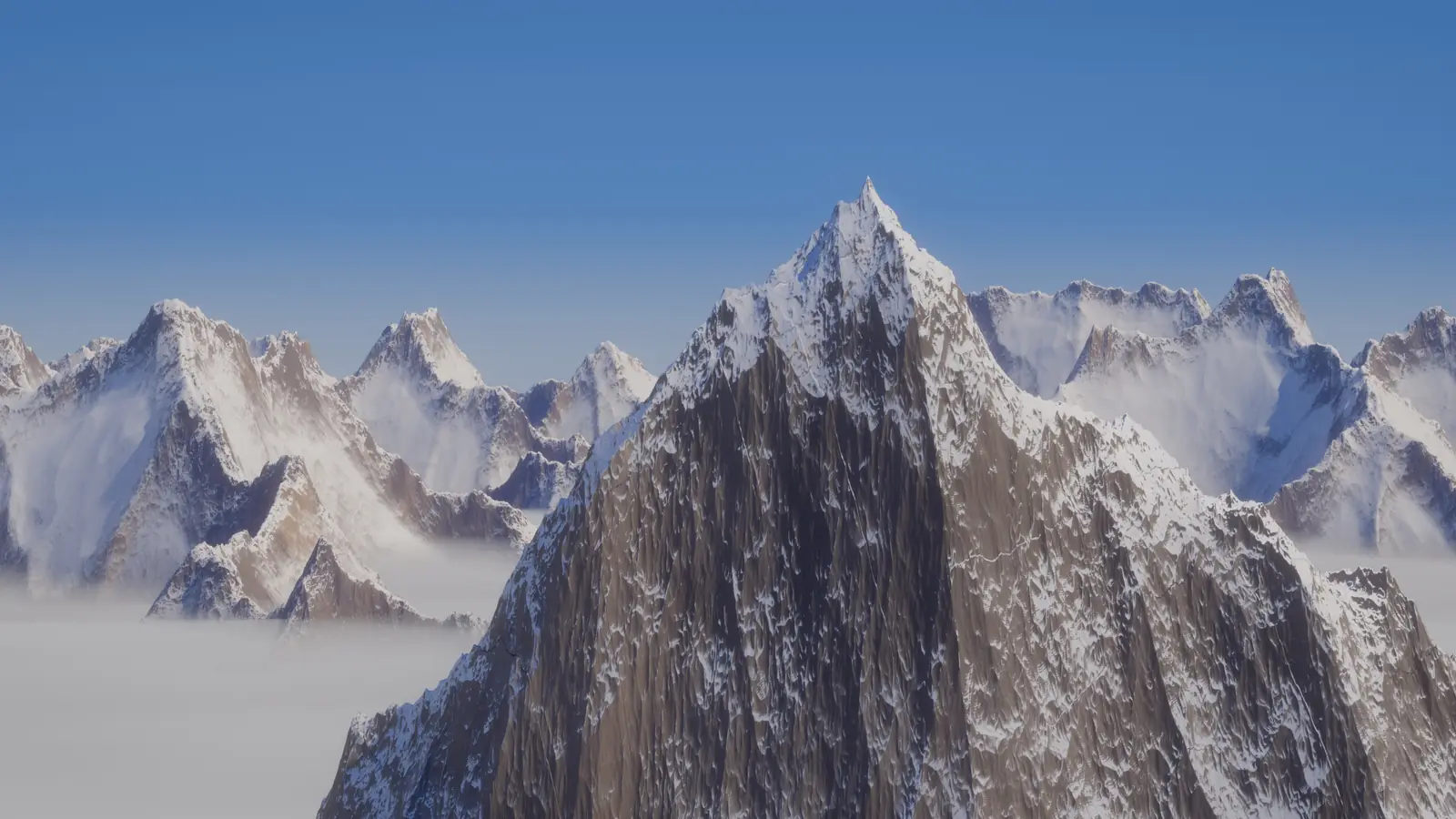
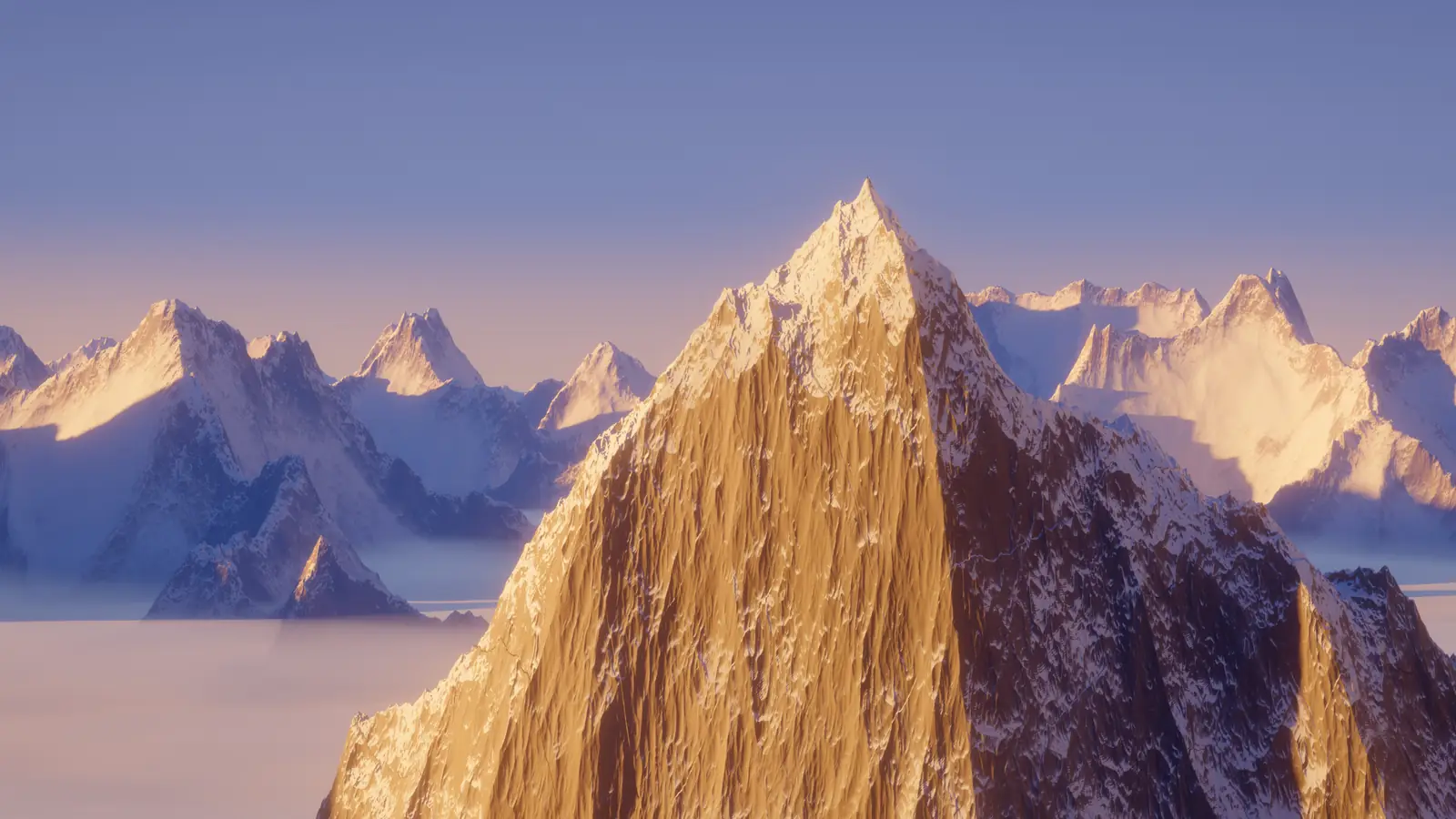
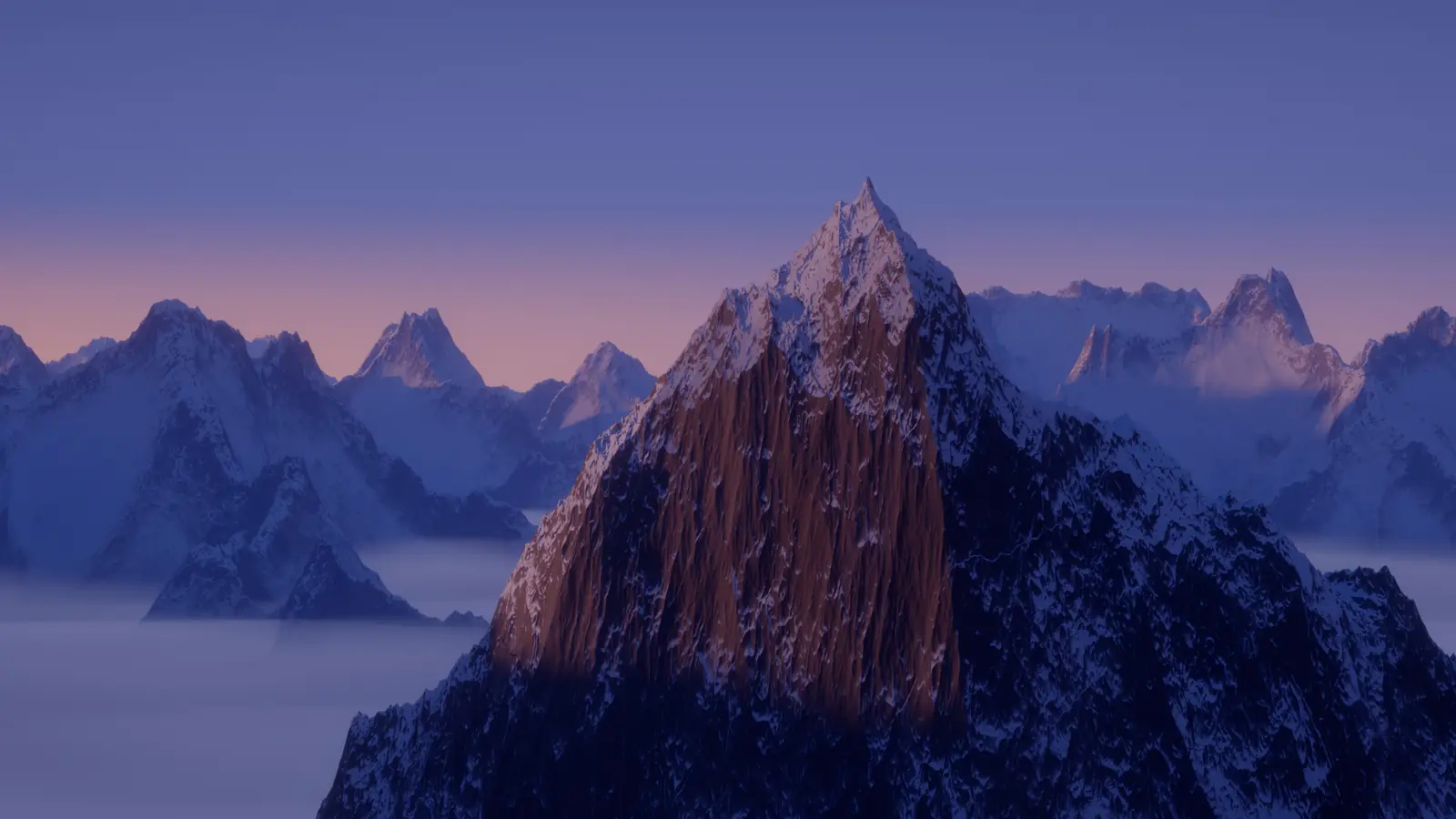
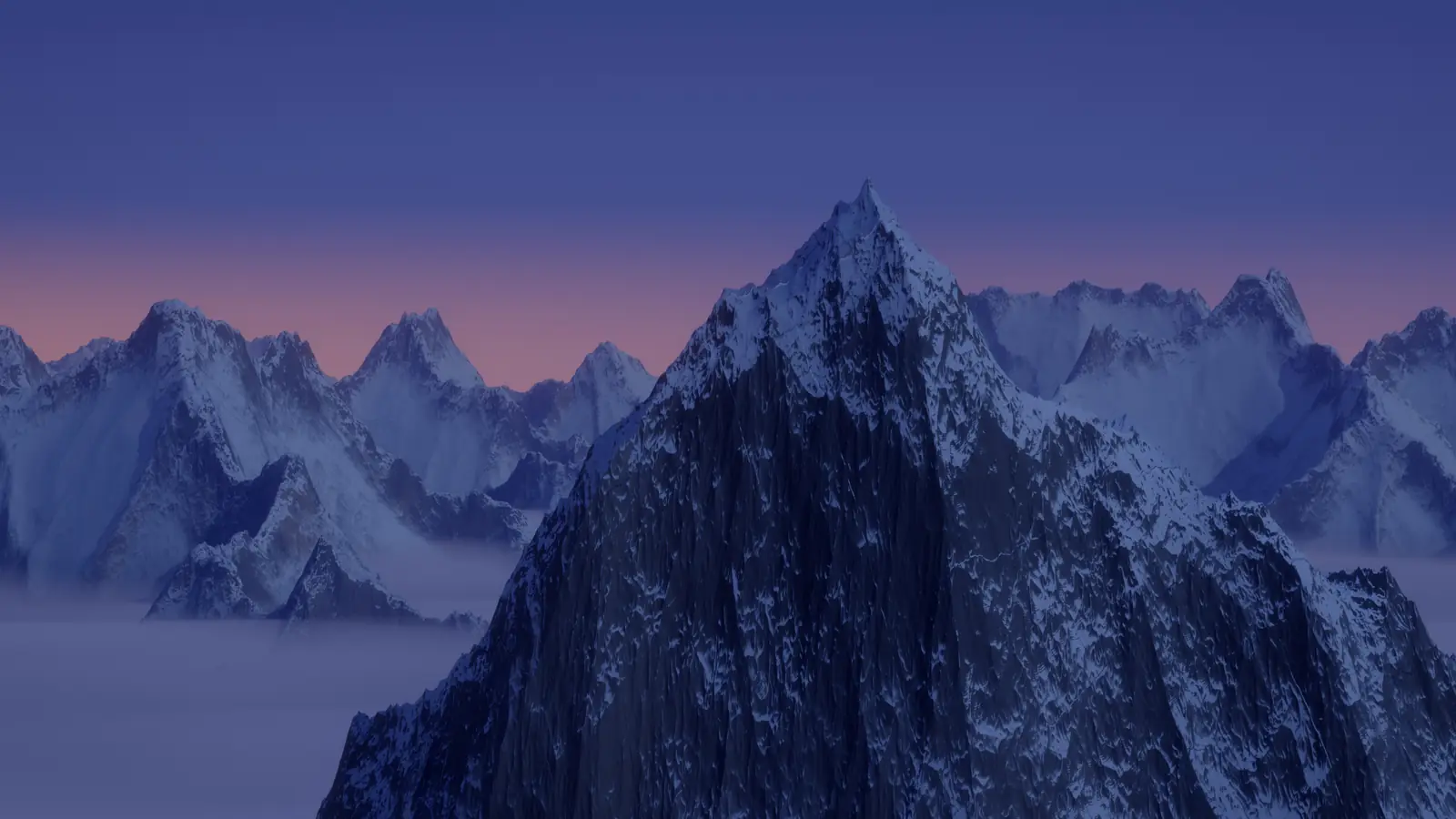
Sunrise to night, while you work.

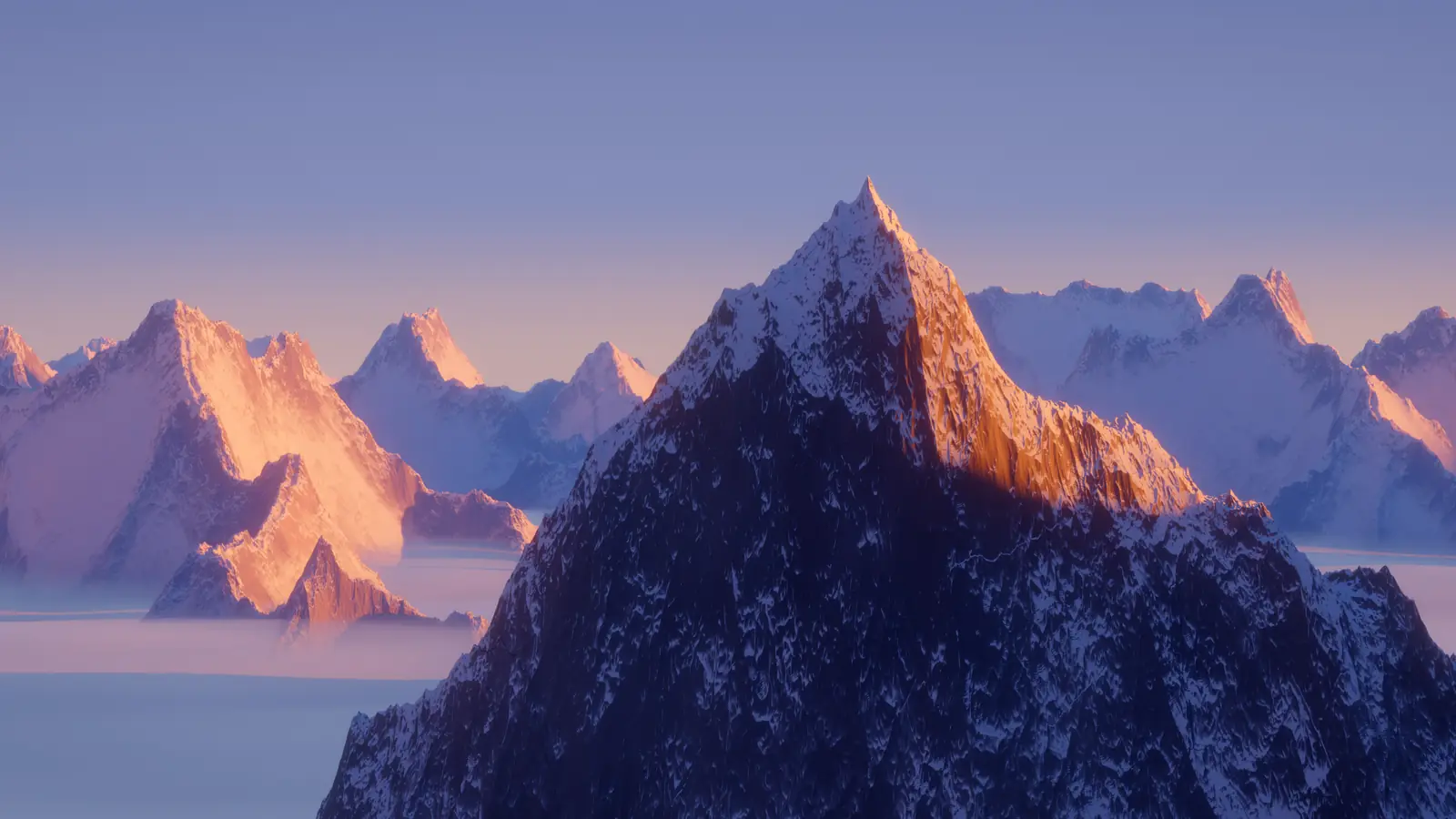
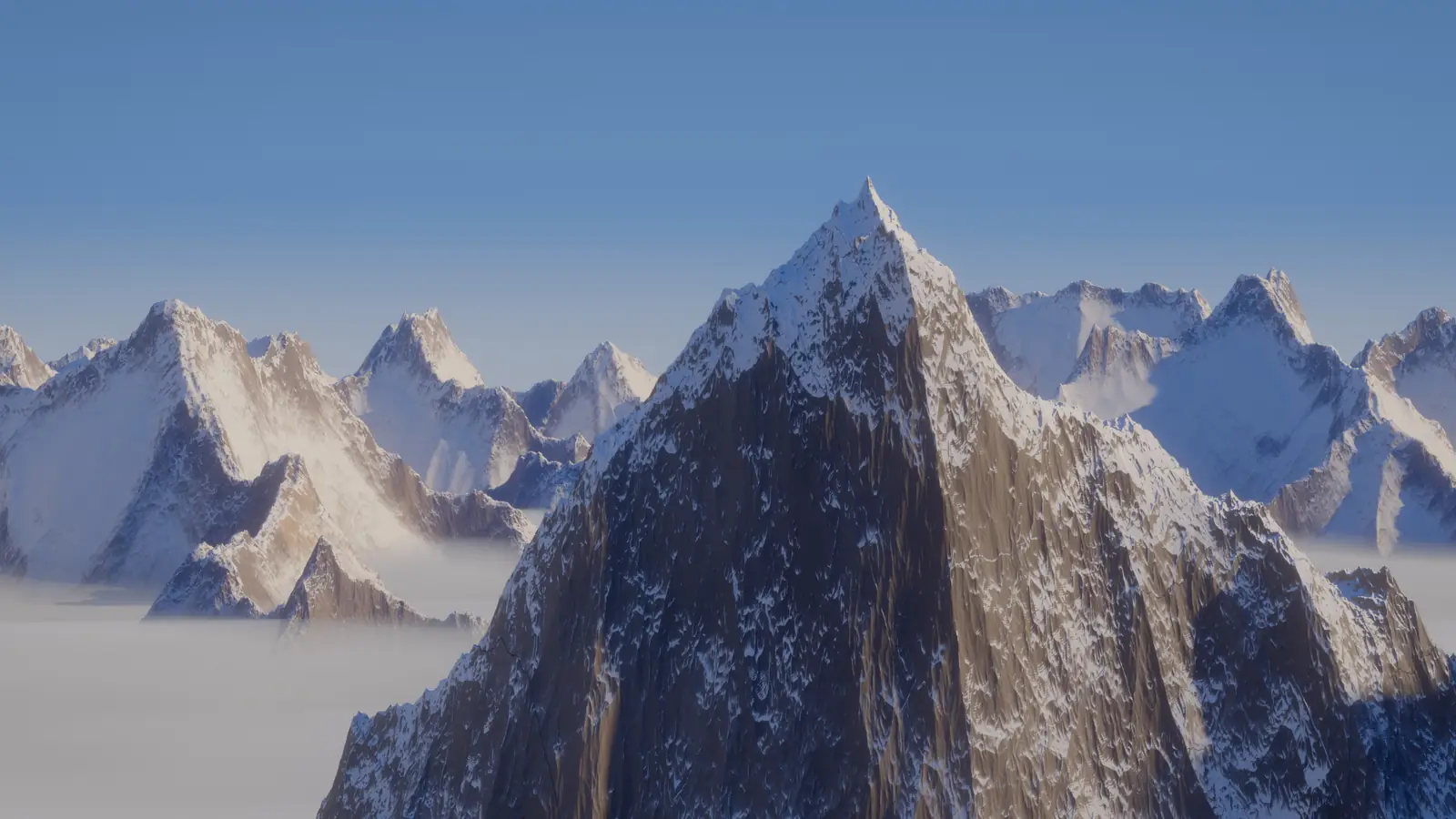
Five of the themes are alive. Each one moves through a full day.

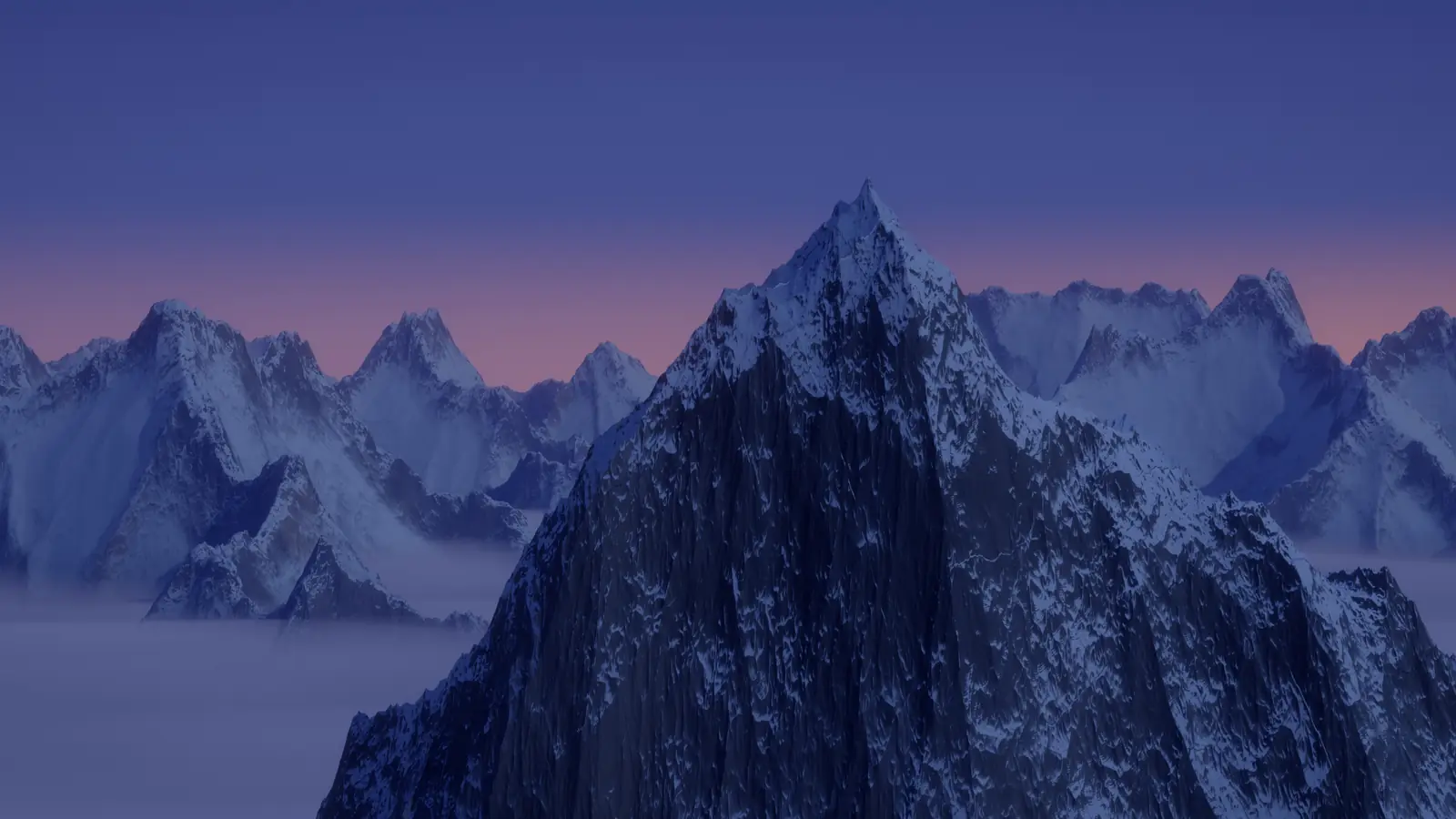
An alpine lake scene at sunrise.

Performance

Your PC does the work.

Auto Editor is a desktop app. Edits run on your computer, with your files in your folders, not in a browser tab. Left on Automatic, it uses whichever is faster for the job: your GPU or your CPU.

More.

Daily Intro

A 7 to 8 second opening for your video in three steps: choose the video, type a title, press Make intro.

Subtitles

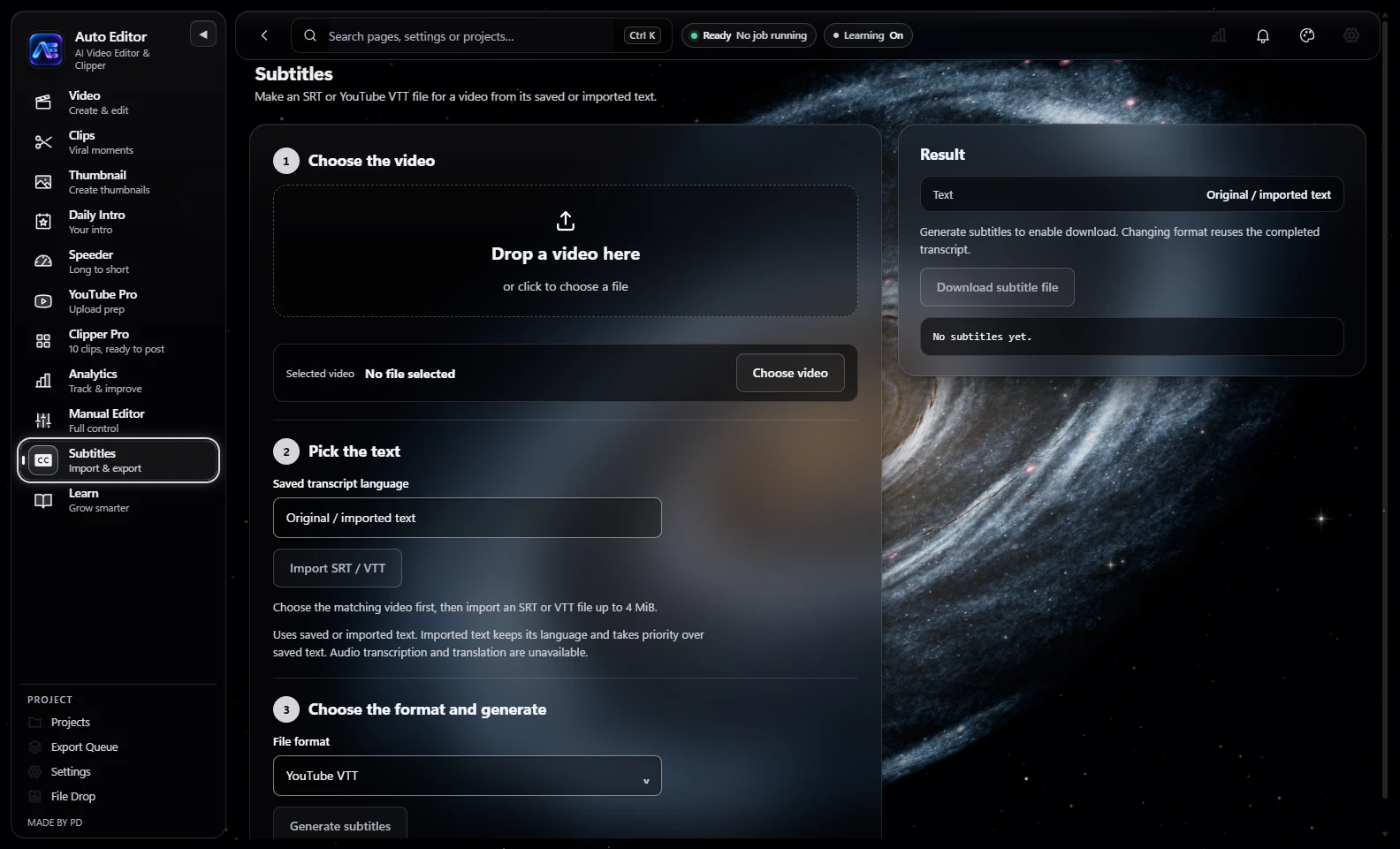
Make an SRT or YouTube VTT file from your saved or imported text.

The Subtitles page: step 1, Choose the video, and step 2, Pick the text, with an Import SRT / VTT button.

File Drop

Transfer original files between your phone and your PC. Pair with a QR code.

Export Queue

Exports keep running while you work in other tabs.

Projects

Create a project, or pick up an edit where you left off.

The film

Every tab, in under 25 seconds.

Tech specs

Auto Editor 2.5AI Video Editor & Clipper
Platform
Windows PC (desktop app)
Version
2.5
Video in
MP4, MOV, MKV, AVI, WebM
Shapes
16:9 landscape, 9:16 vertical
Export resolution
Source, 720p, 1080p, 1440p (QHD), 4K (UHD)
Frame rate
Source, 24, 25, 30, 50, 60, 120 FPS
Clips
1 to 20 per run in Clips; up to 10 in Clipper Pro and Speeder
Thumbnails
1280 x 720, up to 8 variations
Subtitles
SRT and WebVTT in; SRT and YouTube VTT out
Analytics
YouTube and TikTok, tracked separately
Themes
13 themes (5 living), accent colours, custom glow colour
Hardware
Automatic GPU or CPU; NVIDIA hardware encoding supported

Get Auto Editor.

Auto Editor is available by invitation.

  1. Ask PD for the installer.
  2. Open Auto Editor and copy your Device ID from the first screen.
  3. Send it to PD. Once your device is added, press Login and you are in.
Contact PD on Discord dznt3784

The film is on its way.